You find the import under Settings → Import & export. It accepts CSV and Excel files (.xlsx, including files with several sheets) and guides you through mapping, review and import in a few steps. You can undo any import for seven days.
Order
Import Contacts (with a company column) or Companies first, then Deals. Deals are then linked to the existing companies and contact persons; PrestoCRM creates any that are missing.
From Pipedrive or HubSpot
Export the list from Pipedrive or HubSpot as CSV or Excel and upload the file. PrestoCRM recognises the export, preselects the content and maps the columns, whether the export is in German or English. All you do is check.
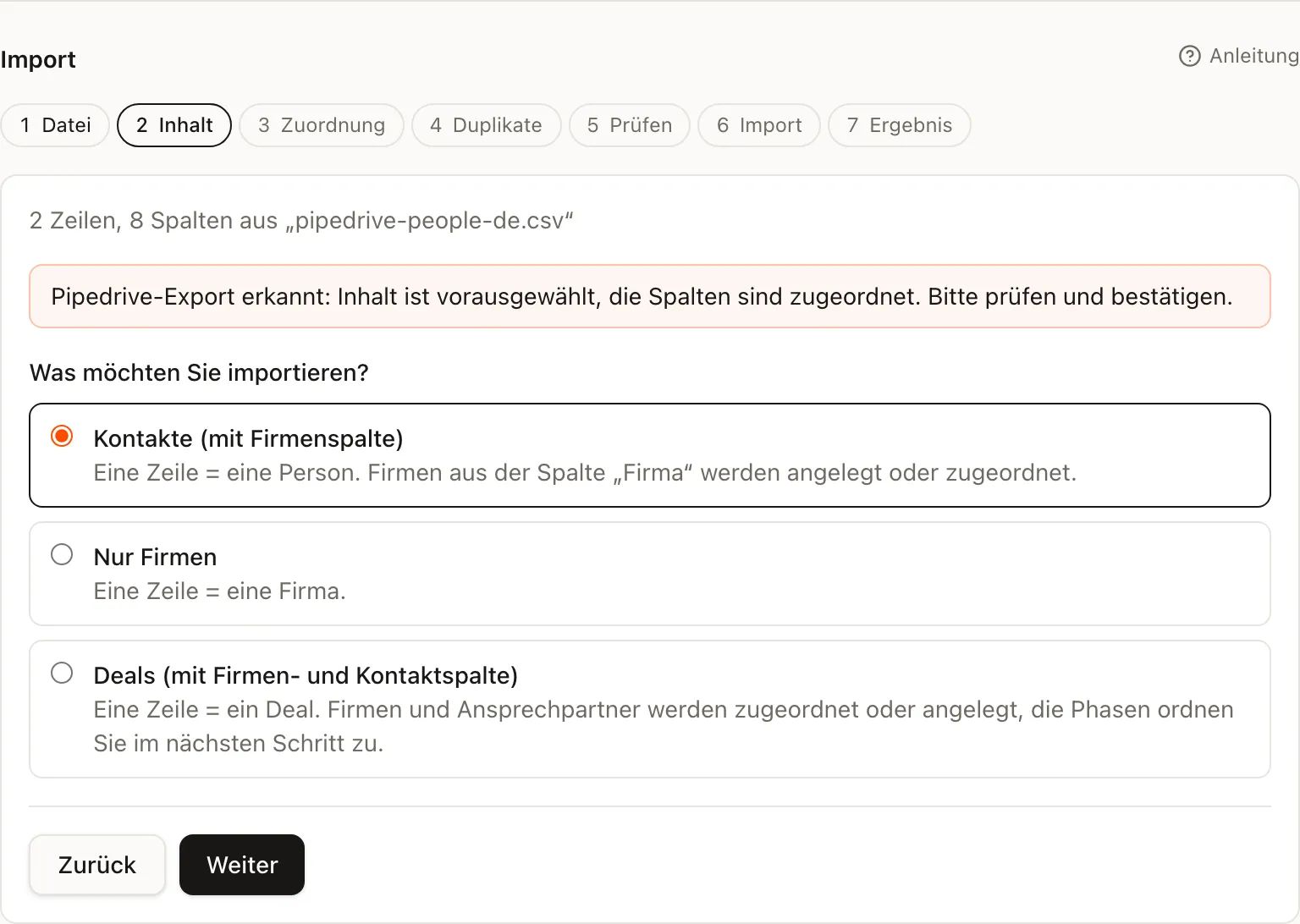
Map the columns
Each column in the file is mapped to a field in PrestoCRM or ignored. You can bring unknown columns into a custom field; PrestoCRM then creates it with the column’s name. The preview shows the first five rows exactly as they will arrive.
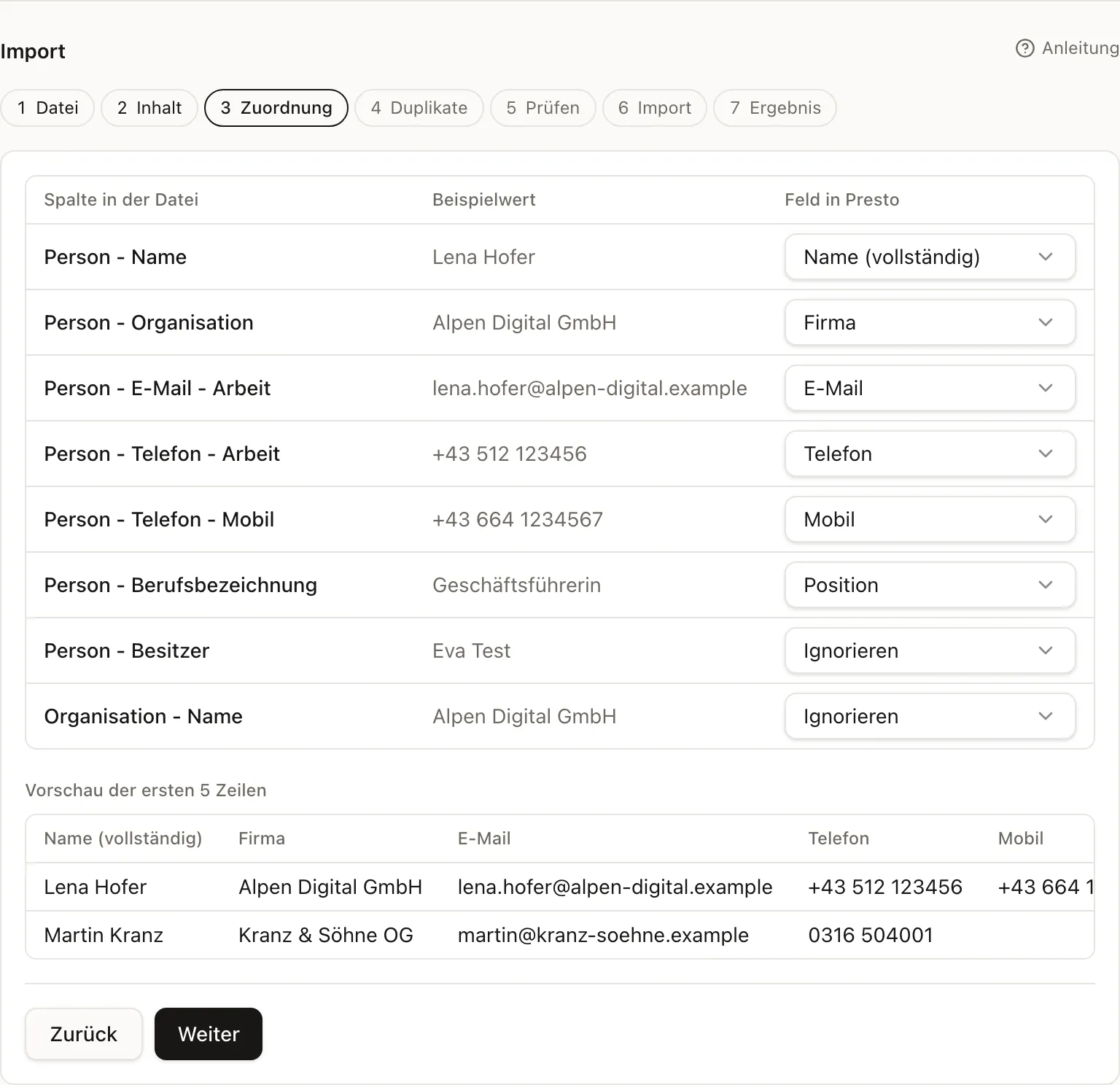
For deals there is an extra Stages step: each stage from the file is matched to a stage in your pipeline. PrestoCRM suggests the right one.
Duplicates and updates
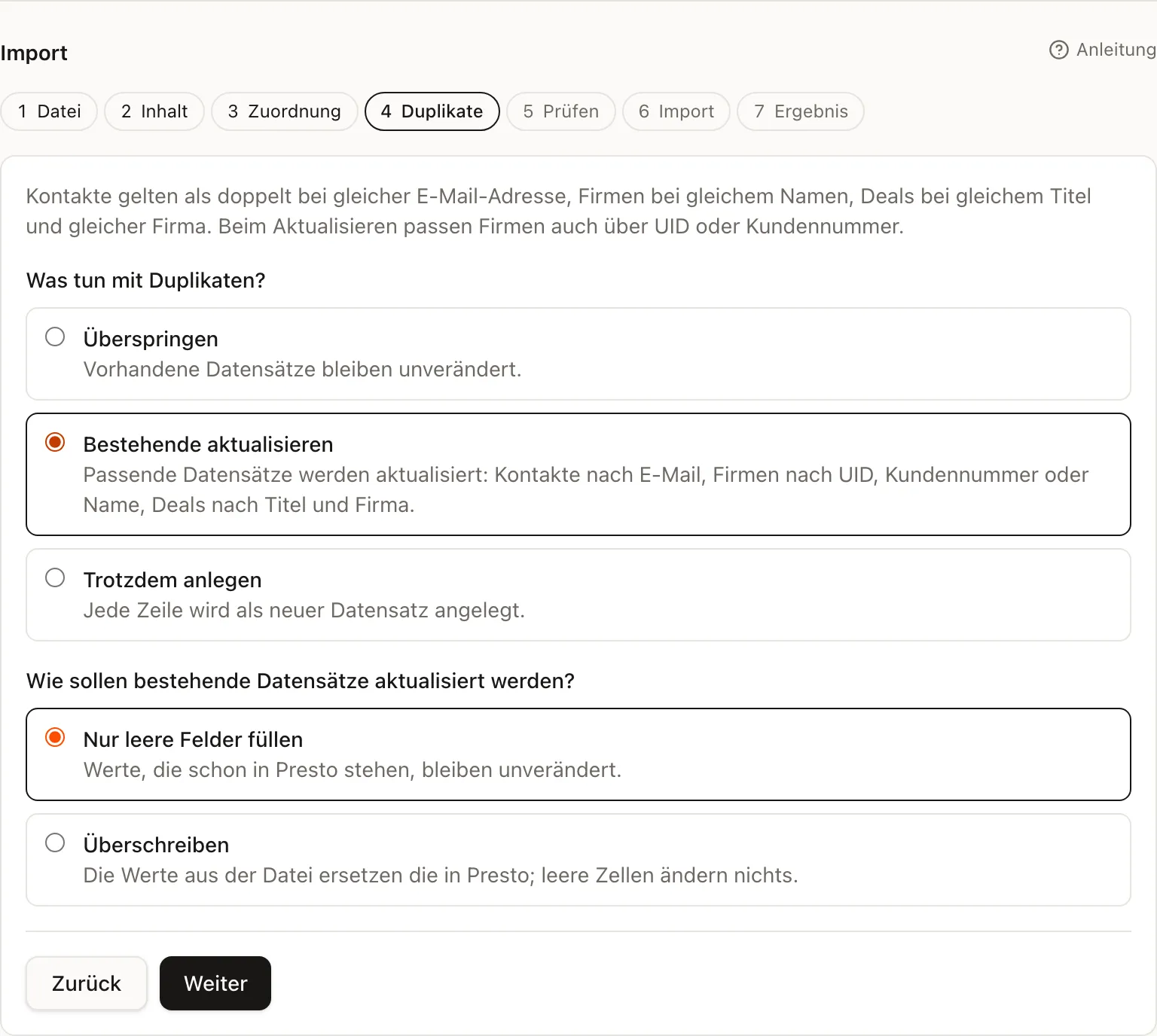
- Skip: existing records stay as they are.
- Update existing: contacts are matched by email address, companies by UID (VAT identification number), customer number or name, deals by title and company. Choose Only fill empty fields or Overwrite. Empty cells never change anything, and every change is recorded in the timeline.
- Create anyway: every row is created as a new record.
This is how you move over in stages: import, correct the old list, then import again with “Update existing”.
Review and undo
Before importing, PrestoCRM shows how many records are new, will be updated or skipped, and which rows have errors (as a list you can download). Under Previous imports every import is listed with Undo import: anything created is deleted, and anything updated gets its old values back.
If you are moving a lot of data, we offer a migration package: we do the import for you.