The pipeline
Under Deals you see your open sales opportunities as columns, one per stage. Each column shows the total and the weighted value (value × the stage’s probability).
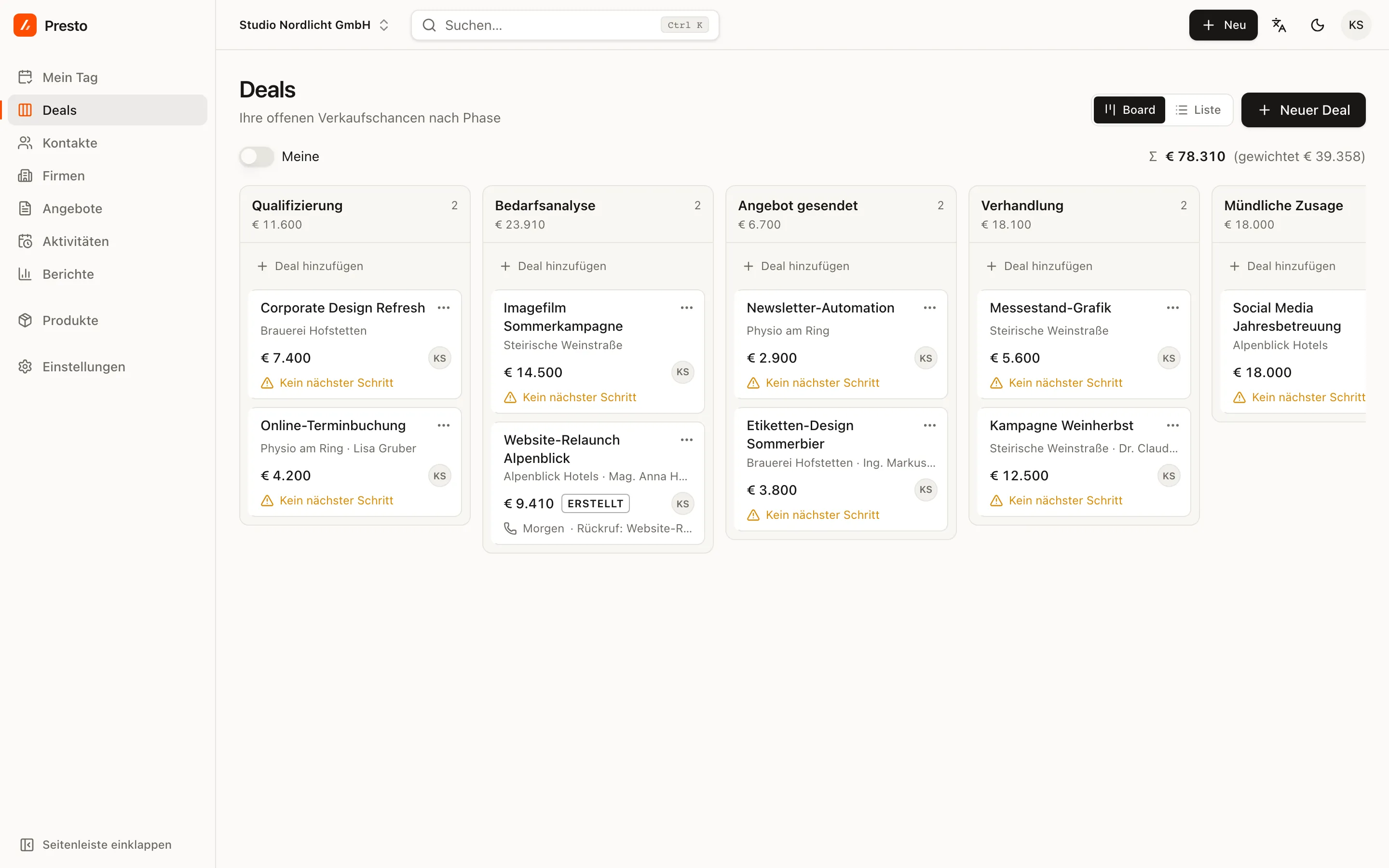
- Move: drag a card into the next column, or use Move to… in the card menu, which also works with the keyboard.
- New deal: + New → New deal, N then D, or Add deal directly in a column.
- No next step: cards without a planned activity are flagged. A deal without a next step is usually a deal that is going to sleep.
- Red: if a deal has not moved for a while, PrestoCRM colours it red. You set after how many days under Settings → Pipeline & lost reasons.
Customise the columns
The columns are the stages of your sales process, and you decide how many there are: three, five or ten. Owners and admins change them right on the board:
- Rename: click the column’s name, type the new name, press Enter.
- Move: in the column menu (⋯), choose Move left or Move right.
- Add: on the far right, click Add column, enter a name, click Add.
- Delete: choose Delete column in the menu. If the column contains deals, you choose which column they go to; no deal is deleted. The last column of a pipeline always stays.
Set the probability per stage and the days until “red” under Settings → Pipeline & lost reasons; Probability and more in the column menu takes you straight there.
Won or lost
On the deal’s page, mark it as Won or Lost. When you mark a deal as lost, PrestoCRM asks for the Lost reason (you maintain the list in the settings) and, optionally, the competitor and a comment. The reasons show up in the reports. You can bring a closed deal back with Reopen.
When a quote is accepted, PrestoCRM offers to mark the deal as won right away.
My day
My day is your start page: what is overdue, what is due today, which deals have no next step, which quotes need a follow-up and what is coming up in the next few days. At the top you switch between Mine and All.
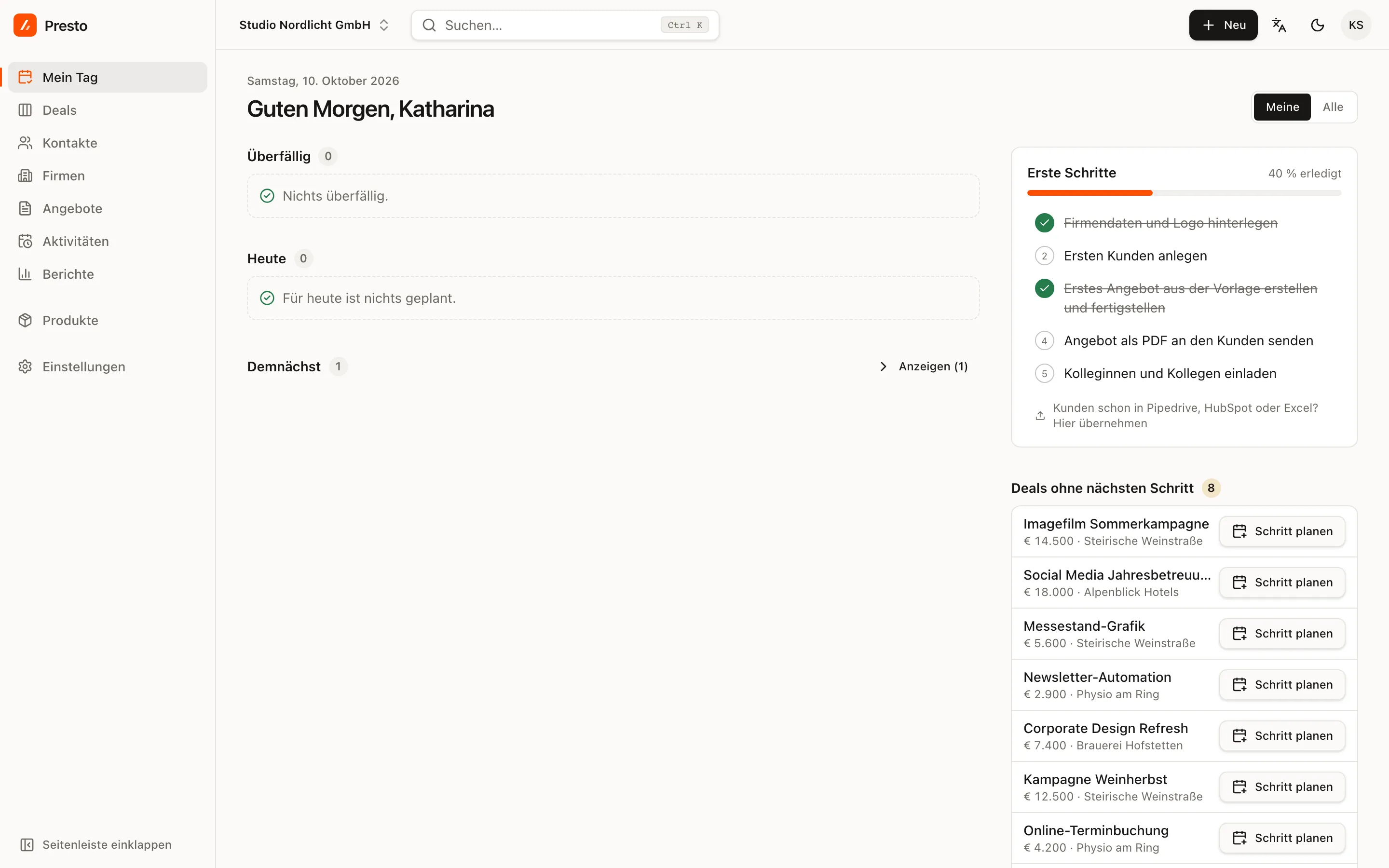
Schedule activities (call, meeting, task, deadline, email) with + New → New activity, or directly on a deal without a next step with Plan step. Done? Tick it off. If the deal then has no next step left, PrestoCRM asks you for the next one.
Contacts and companies
People and companies are kept separate: a person belongs to a company, and deals and quotes are attached to the company. For people you record salutation and titles (before and after the name); PrestoCRM builds the Briefanrede, the formal letter salutation on the quote, from them. You edit fields directly on the page, and every change is recorded with name and time in the timeline.